Classroom screen sharing that starts with your Chromebook.
Put lesson materials and student work side by side on the classroom display. Polaris supports browser sharing from Chromebooks and native Google Cast on the classroom network, with Polaris Cloud giving district IT one place to manage its Polaris rooms.
Keep the lesson moving.
Teachers need a clear path to the display. District IT needs a setup it can support across classrooms, device policies and school networks.
If the classroom display does not support the devices students use, sharing their work becomes another task for the teacher.
Showing one screen at a time makes it harder to discuss different approaches to the same problem.
A new classroom app can add deployment and support work for IT.
Checking settings and firmware room by room takes IT away from other work.
Start with the rooms you need today.
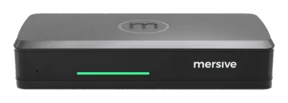
Polaris Essentials and Pro are available now. Polaris Essentials and Pro run the same software for sharing and room management. Hardware differences determine which sources and room equipment each can support. Route and Engage are planned teaching tools, described separately below.
Classrooms, libraries and shared learning spaces
- Share from supported Chromebook and laptop browsers.
- Compare shared work side by side in the workspace.
- Show announcements between sessions and manage the room in Polaris Cloud.
- Full warranty while on active subscription.
See current options on the Essentials product page.
Explore EssentialsRooms with wired sources or conferencing equipment
- Run the same workspace, browser sharing and Polaris Cloud software as Essentials.
- Connect compatible wired sources to the room hardware.
- Use the room’s camera and microphone for wireless BYOM with compatible equipment.
- Full warranty while on active subscription.
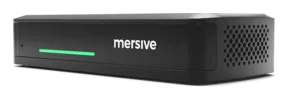
See current options on the Pro product page.
Explore ProHallway displays and spaces focused on sharing and signage
- Planned for wireless sharing and digital signage.
- Designed around a single live source.
- Planned as a one-time hardware purchase with no subscription.
- Managed in Polaris Cloud.
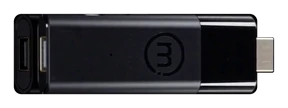
See the Launch product page for the current plan.
Explore Launch plansChoose Pro if the room needs a wired document-camera connection, and confirm compatibility with the camera you use. Essentials does not accept wired source input. Discuss district purchasing requirements and rollout plans with Mersive and your education partner.
Share in class. Manage across schools.
Use browser sharing, the shared workspace, signage and Polaris Cloud today. Keep the planned Route and Engage teaching tools separate from your current classroom requirements.
Two ways to share from Chromebooks
Web-join brings supported Chromebook browsers into the workspace without a separate app or extension. Native Google Cast is the path for supported devices on the classroom network. For participants on other networks, use web-join after IT has configured the required network access. Participants who join through a browser can also view the shared workspace.
See how sharing works →Route and Engage: planned teaching tools
Route is planned for Q1 2027. Engage is planned for Q1 2027, with its date still to be confirmed. Neither is orderable today.
Route is planned to let teachers route student work between classroom displays and moderate what appears. Engage is the separate planned product for polls, quizzes and participation records, with anonymous or named responses and session review. Pricing and packaging are not yet confirmed.
Explore Engage plans →
Explore Route plans →District management in Polaris Cloud
Apply a configuration template to the rooms you select, schedule firmware updates outside teaching hours and review room usage. Receive alerts for supported events, including an unreachable pod or a completed firmware update, so IT can investigate from the same portal.
Explore Polaris Cloud →One platform across school spaces
Use Essentials and Pro across classrooms, libraries and administrative rooms. Both run the same software and share the same cloud management. Choose the hardware for each room’s sources and equipment, then manage your Polaris fleet together.
Compare the Polaris family →Test it with your teachers and devices.
Run a classroom evaluation before planning a wider rollout. Use an available Essentials or Pro unit, the devices your district issues and the network settings your IT team supports. Record what works, what needs setup and what teachers need help with.
Join and share
Test browser sharing and Google Cast separately with your managed Chromebooks. Record connection steps, permission prompts and time to first share.
Teach a lesson
Share lesson materials and student work side by side. Check readability from the back of the classroom, switching between activities and ending the session. Record the guidance teachers need.
Support the room
Apply a configuration template, schedule an update and review pod health in Polaris Cloud. Record the IT work needed before adding more rooms.
Evaluate Route and Engage separately when they become available. This classroom evaluation does not depend on their planned capabilities.
See Polaris in your classroom.
Request a trial of an available Polaris product and test it with your teachers, devices and network. Tell us about your existing education partner so they can be involved in planning the rollout.
Request a classroom trial